

File Editor
Edit files directly in Emdash
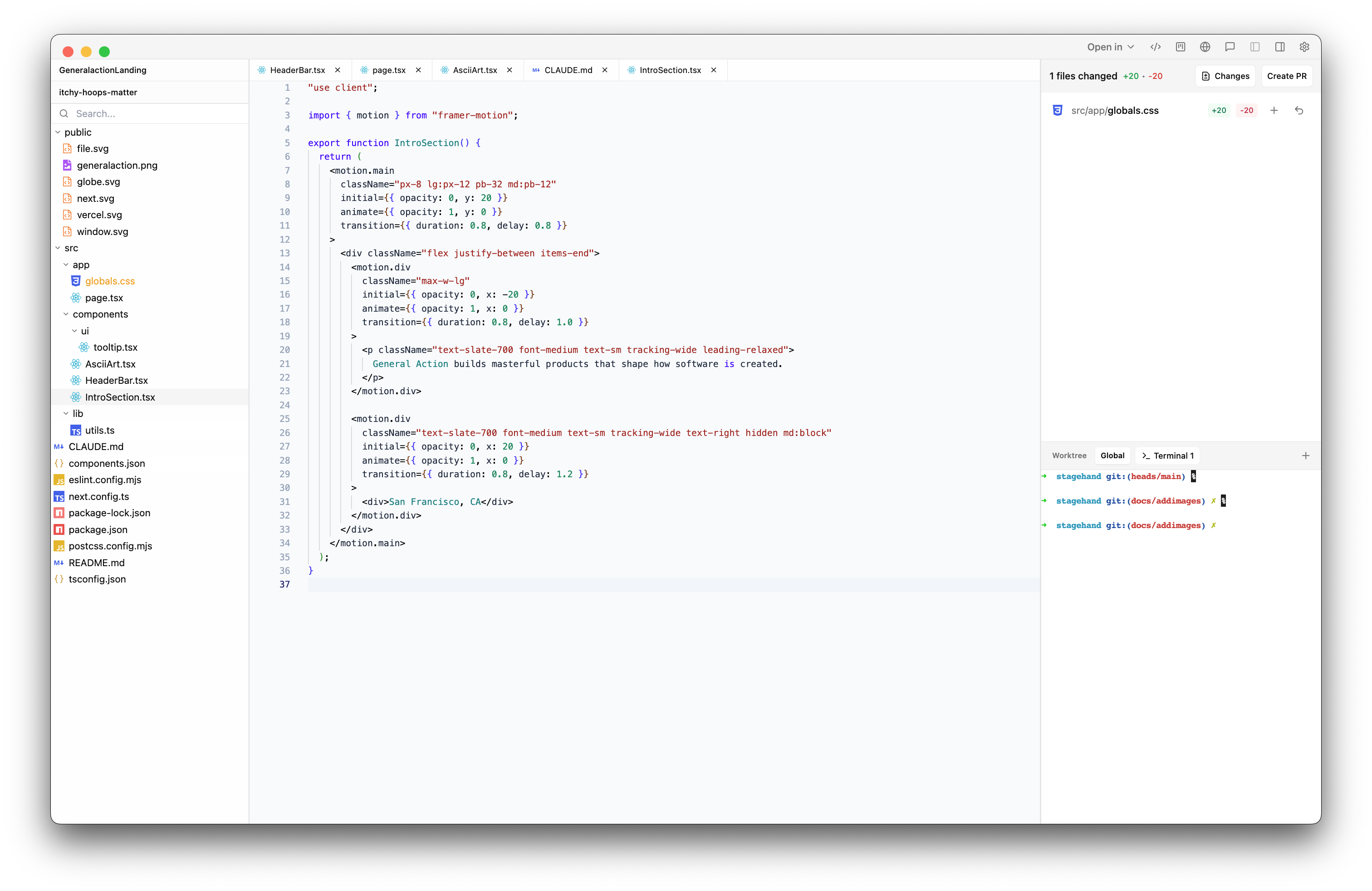
The file editor lets you browse and edit code in a task's worktree without switching to an external editor. Use it to explore the codebase, make edits yourself, or review what an agent has done.
Opening the Editor
Click the code icon in the titlebar when viewing a task. The editor opens in a side panel with a file tree on the left and the code editor on the right.
Navigating Files
The left panel shows your project's file tree. Click a file to open it. Files open in tabs at the top of the editor, so you can switch between multiple files.
Common system directories like node_modules, .git, and build output are hidden by default. Click the eye icon to show or hide them.
Editing
The editor is a full-featured code editor with syntax highlighting, find/replace, and the usual keyboard shortcuts. Changes auto-save after 2 seconds of inactivity, or press ⌘S to save immediately.
Git diff markers appear in the gutter:
- Green dots for added lines
- Orange dots for modified lines
- Red markers for deleted lines
These update automatically as you edit, so you can see what's changed compared to the last commit.
Saving
Files with unsaved changes show a dot in their tab. Use ⌘⇧S to save all open files at once, or click "Save All" in the header.
After saving, the diff view updates to reflect your changes.
Images
The editor also handles images. Click an image file to preview it instead of showing raw bytes.
Resizing
Drag the divider between the file tree and editor to adjust panel widths. The layout remembers your preference.