

Diff View
Review and manage code changes
The diff view shows all file changes in a task's worktree. Stage files, review diffs, write commit messages, and create pull requests from one panel.
Where to Find It
The diff view lives in the right sidebar when you have a task open. It updates automatically as the agent makes changes (polls every 5 seconds).
What You See
For each changed file:
- File path and type icon
- Lines added (green) and removed (red)
- Staged or unstaged status
The header shows total files changed, overall additions/deletions, and PR status if a pull request exists.
Actions
Stage a file: Click the + icon to add a file to the staging area.
Unstage or revert: Click the undo icon. For staged files, this unstages them. For unstaged files, this discards all changes (resets to last commit).
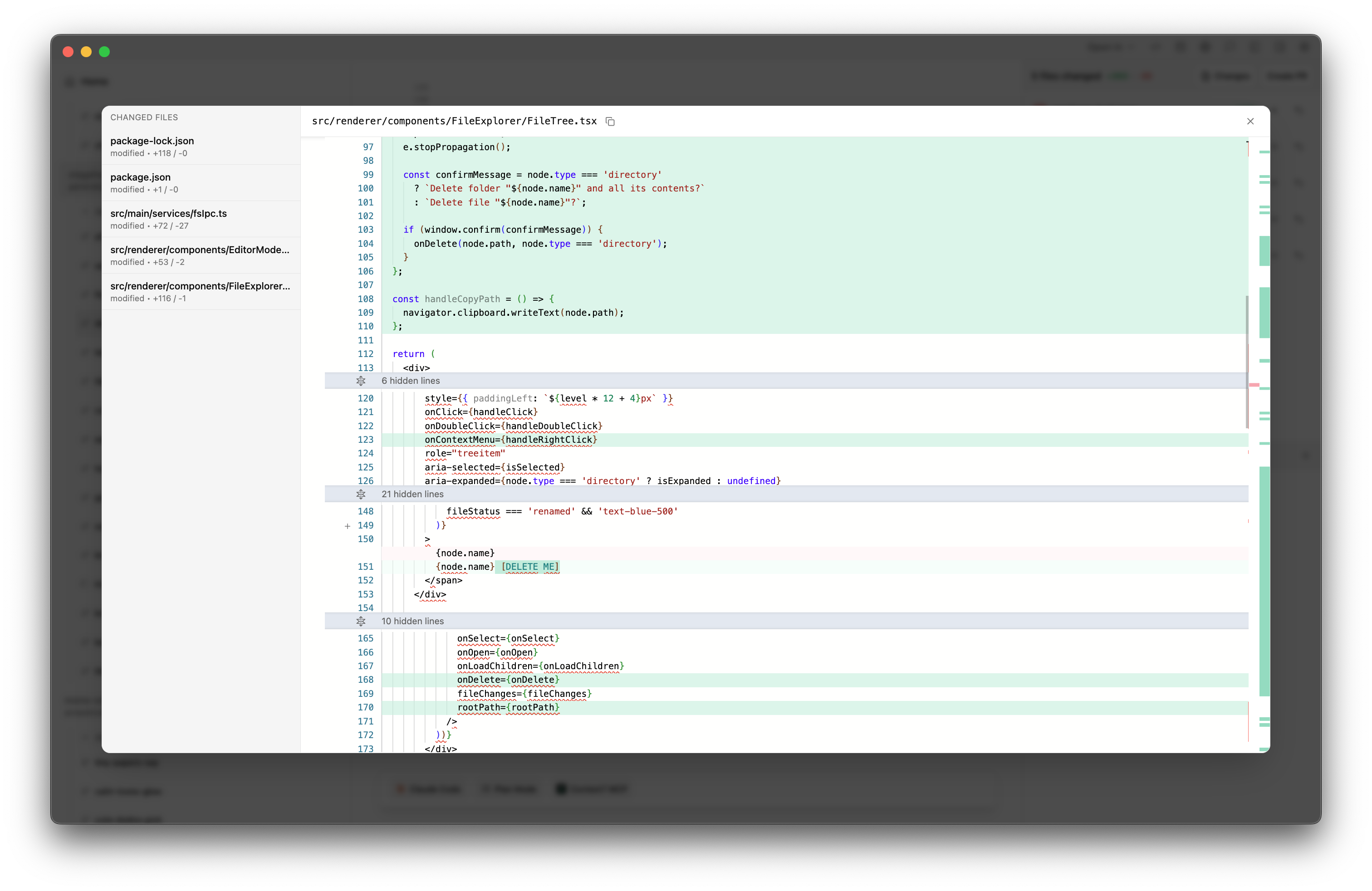
View diff: Click a file to open it in the diff viewer. You can edit the file directly in the diff view and save your changes.
View all changes: Click "View All" to see diffs for every changed file in one scrollable view.
Commit and push: Type a commit message and press Enter. Emdash commits staged changes and pushes to the branch.
Create PR: After pushing, a "Create PR" button appears if your branch is ahead of main.
Inline Editing
The diff viewer isn't read-only. Edit the modified version directly, then save. This is useful for quick fixes without switching to your editor.